This is a portion of the Print Options page.
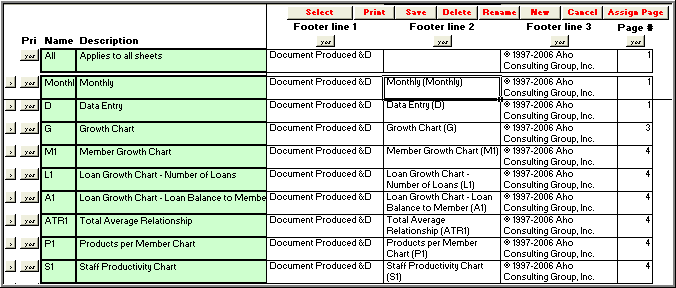
Print Option Command Buttons
Let's take a look at the command buttons you can use. The command buttons are located in the top right hand corner of the worksheet.

Select Printer
When you click on the Select Printer button, a dialog box pops up, allowing you to select the printer you would like to use.
If you click on the Setup button within this dialog box, you can choose paper types, sizes, etc.
The Print button will print your job.

Save
Clicking on the Save button allows you to name a new print job, and saves any changes you have made.
Once you save and name your Print Job, you may notice that the new print job name appears in the top left-hand corner of the worksheet.

Delete
The Delete button will delete your print job.

Rename
If you would like to change your print job name, you can use the Rename button. When you click on the Rename button, the following dialog box will appear. Enter your new print name, and select O.K.

Cancel
The Cancel button will cancel any unsaved changes you have made, and take you out of your print job.

When you click on this command you will be asked to enter a page number. The pages in your report will start with the value you type in the Assign Page Numbers box and move forward chronologically. This might be handy if for example, you have a two page introductory letter to insert before your financial information.
You can change individual page numbers throughout your print job by typing over the number in the box. For example, you can make your Growth chart page 27 if you would like. This might be helpful if you are planning to insert your financial information into specific places within a separate report.
